How to Use JavaScript Feature Flags and Toggles to Deploy Safely (React.js Example)

JavaScript Feature Flags Introduction
Using feature flags (AKA feature toggles) in any language significantly reduces the blast radius of a release if anything goes wrong. Feature flags in JavaScript are no exception.
We already shared the guide on how to use feature flags in Node.js. In this post, you will learn how to use JavaScript feature toggles in a React.js application to deploy a small feature safely to your users.
What is a feature flag?
A feature flag is a software development tool that lets you decouple deployment and release. With feature flags, you can enable and disable features dynamically—without needing to deploy new code. Instead, wrap the feature in a flag and turn it on or off. You can use feature flag software for more flexibility and control, and to make flag management easier.
Why use feature flags?
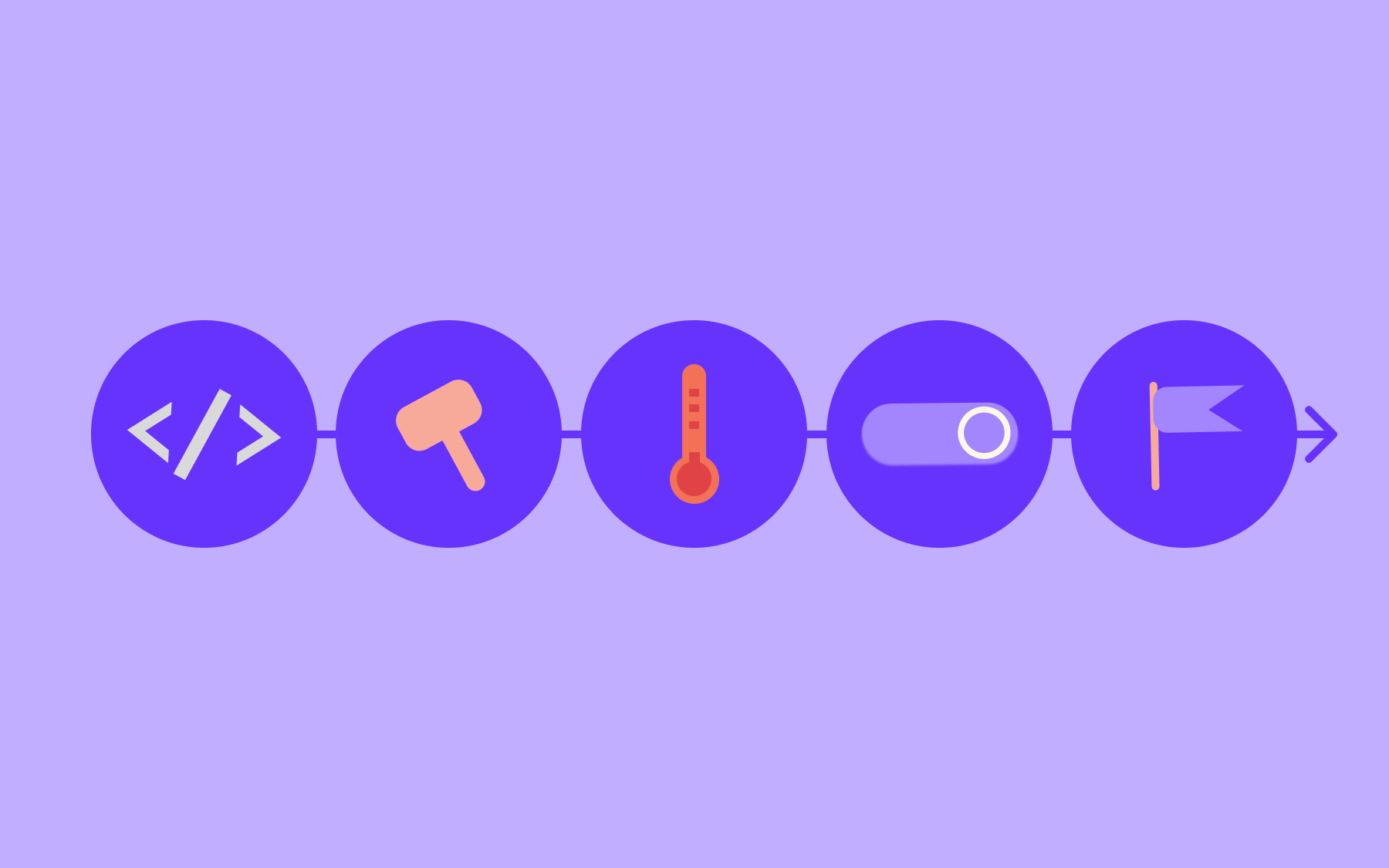
With feature flags, you can control the way you release features to users. Here's a quick feature rundown of the feature flags JavaScript developers use the most:
- Easy on/off feature toggling
- Kill switches
- A/B testing
- Staged rollouts and canary releases
- Continuous deployment
- Safe deployment and risk mitigation (lowering the risk of pushing buggy code to users)
Here are some feature toggle best practices to keep in mind if you're just getting started with flags.
Prerequisites
Prior to diving deeper into coding and feature flags in JavaScript, below are some of the prerequisites that are good to have:
- Some knowledge of JavaScript and React.js is essential.
- Knowing how Node.js and Yarn work is required, as is knowledge of how to add new packages with Yarn.
- A Flagsmith account will be used to create your feature flag. Register now (it's free and takes 2 minutes).
Let's jump right into the code part now—brace yourself.
Example: JavaScript feature flag with React.js Dev.to app
We will build a simple React.js app that will list the latest articles from Dev.to. Dev is a community of software developers getting together to help one another out.
It is an amazing community where anyone can publish technical content without any editorial process. Based on Forem, it has a handy API and we are going to use the articles API to list the latest articles in a light React.js application.
To create the React.js application using Vite, we will run the following command:
yarn create vite devto-react --template reactIt will ask which linter to use (we kept the default, Oxlint) and whether to install and start the app now. Answer “No” to the second question, as we’ll do that in the next step. It will then scaffold a new React project in the devto-react folder, ready for its dependencies to be installed.
Next, we will install the dependencies and quickly run the React.js boilerplate application to see if it is running with:
cd devto-react
yarn
yarn dev
It will start the development server at 'http://localhost:5173'. Open that address in your browser, and it will look like this:
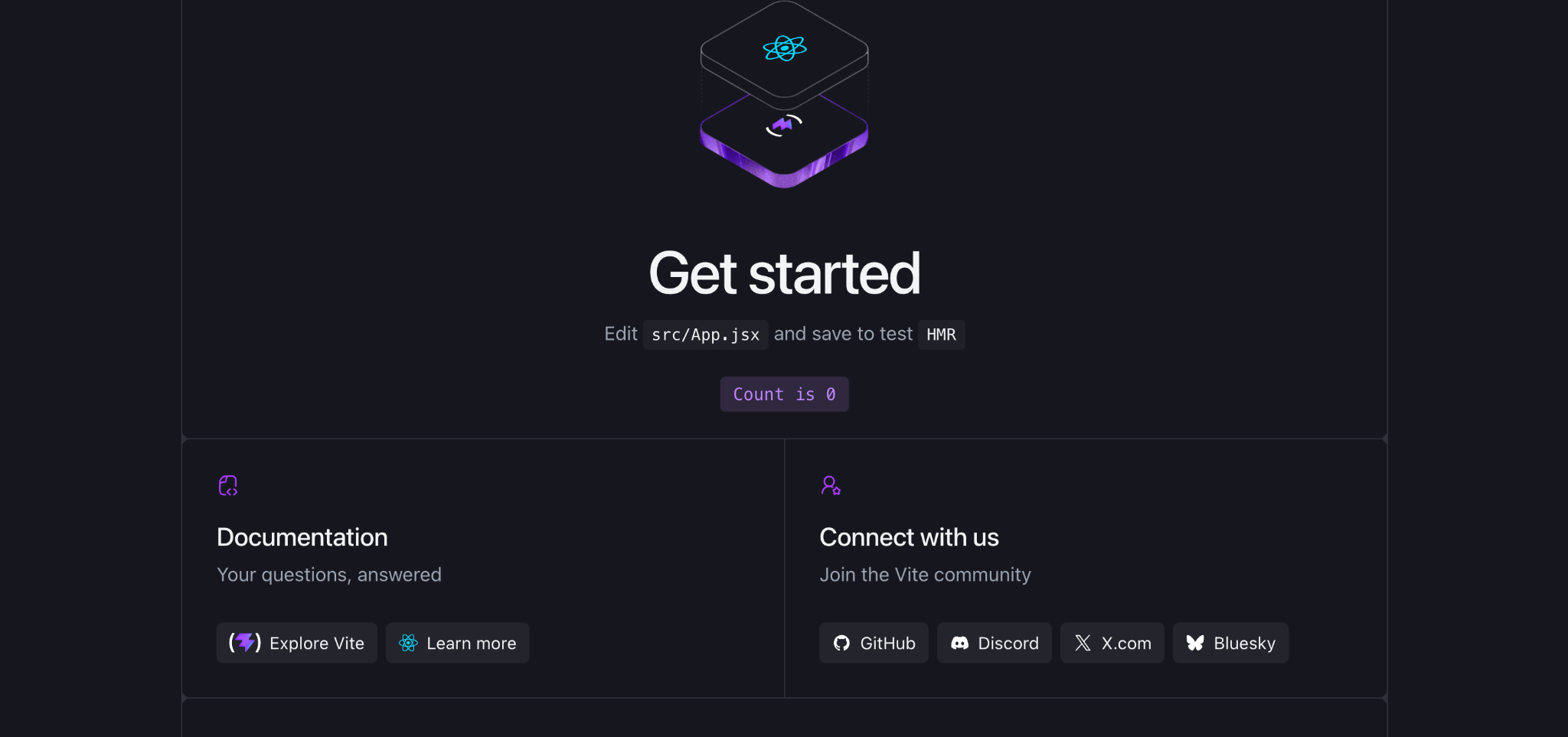
Hurray! Our skeleton React app that we created for the JavaScript feature flags tutorial is running. We will change the code to call the Dev.to API next.
First, we will change the src/App.jsx file to look like the code below:
import React, { useState, useEffect } from 'react';
import './App.css';

function App() {
  const [articles, setArticles] = useState([]);
  const [message, setMessage] = useState('loading…');

  useEffect(() => {
    async function fetchArticles () {
      try {
        const data = await (await fetch('https://dev.to/api/articles/latest')).json();
        if (!Array.isArray(data)) throw new Error('Unexpected API response');
        setArticles(data);
        setMessage(data.length ? '' : 'No articles found');
      } catch (err) {
        console.log(`err: ${err.message}`, err);
        setMessage('could not fetch articles');
      }
    }
    fetchArticles()
  }, []);

  return (
    <div className="App">
      <header className="App-header">
        <h2>Latest Dev.to articles</h2>
        {message}
        <div className="articles">
          <ul>
          {Array.isArray(articles) && articles.map(
            article => article.url && <li key={article.id}><a href={article.url} target="_blank" rel="noreferrer">{article.title}</a> – by {article.user.name}</li>
          )}
          </ul>
        </div>
      </header>
    </div>
  );
}

export default App;
We use the React useState hook to define two variables: articles and message. Then, using the useEffect hook, we are calling the Dev.to API in the fetchArticles function. The articles fetched are being put into the articles variable. If the API returns no articles, the message variable is set to No articles found, and if the request fails, it’s set to could not fetch articles instead.
Below, in the return section, we are looping through all the fetched articles and showing the title of the article with a link to it and the name of the user who has posted the article.
Consequently, we will change src/App.css to have the following contents:
.App-header {
  min-height: 100vh;
  display: flex;
  flex-direction: column;
  font-size: calc(10px + 2vmin);
  text-align: left;
}

.App-header h2 {
  text-align: center;
}
The CSS has been simplified to show the list of articles, removing the unneeded styles for the logo and the background. Text alignment has been reset too.
The focus of this tutorial is to help you learn how to do React feature flags with Flagsmith. When we run it with yarn dev after making the above changes, the application looks like this by now:
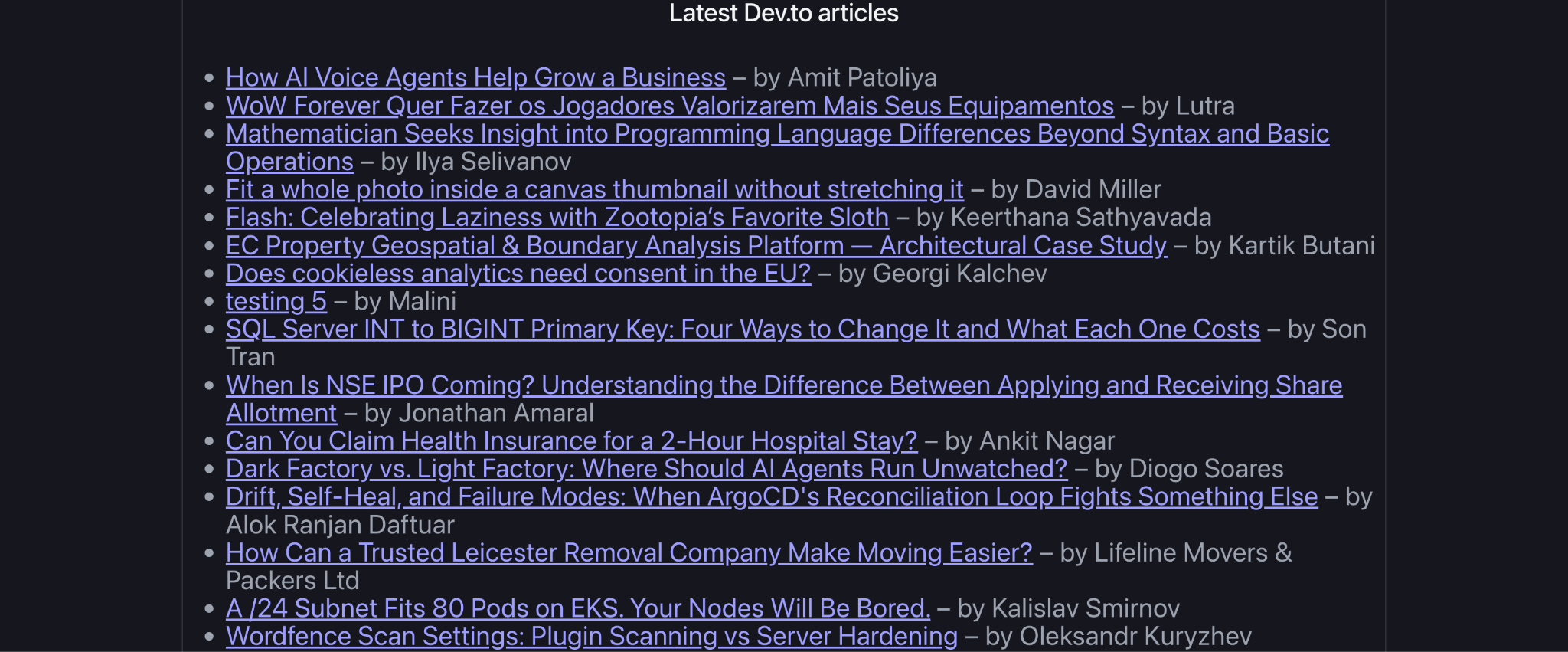
For the scope of this guide, we will add the reading time in minutes for the articles. As this small feature will be added with a feature flag in JavaScript, it will be very easy to turn it on and off simply by flipping a flag within Flagsmith; no re-deployments are necessary. That is the power and convenience of feature flags, as deployment is not a release.
In the next section, we will set up the feature flag for our example within Flagsmith's UI. Then we will add Flagsmith's JavaScript SDK, available on NPM, to our project. After that, we will add some code to implement the simple flag to show or hide the reading time for the Dev articles.
Set up Flagsmith for JavaScript Feature Flags
To create JavaScript feature flags to show or hide the reading time for articles, we first need a Flagsmith project and a flag. When you sign up, Flagsmith creates an organisation, a project, and a flag for you. Use the pencil icons on the welcome page to rename the project to Dev-React and the flag to show_reading_time:

Next, click “Skip onboarding, I’m a pro” at the bottom of the welcome page and open the Dev-React project. (If you already have a Flagsmith account, click “Create Project” on the Projects page instead, then add the flag with the “Create Feature” button.)
The new flag starts switched off. Click it, switch “Enabled” on, and click “Update Feature Value”. Your Features list in the Development environment should now look like this:
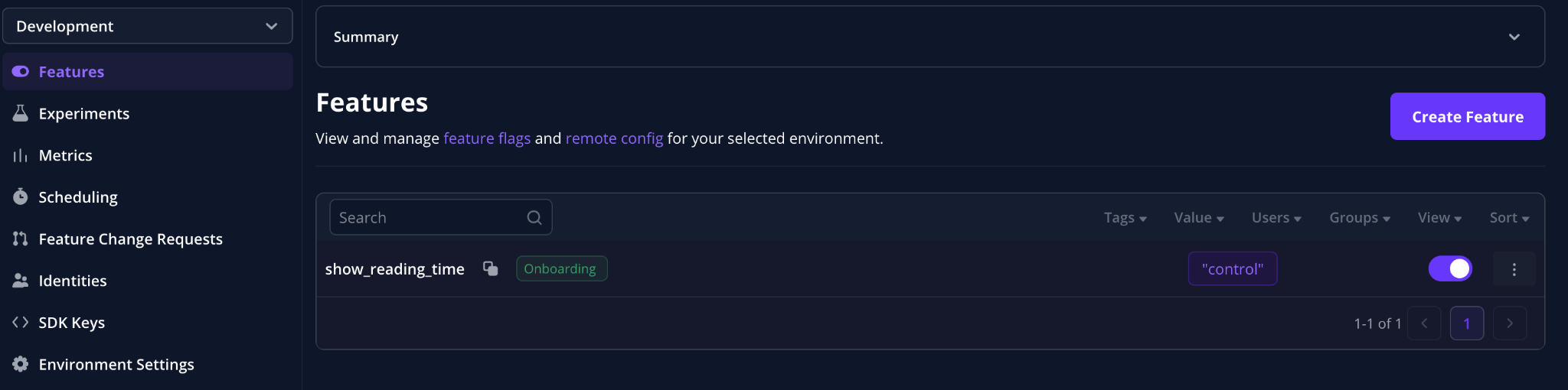
The flag exists in both the Development and Production environments, but each environment has its own on/off setting.
Next, we will install the @flagsmith/flagsmith NPM library and use it in the React.js app for our JavaScript feature flags tutorial.
Install and use the Flagsmith JavaScript client
We have created the feature flag in Flagsmith in the UI; now it is time to use it in the Dev React app. To do this for our JavaScript feature flags tutorial, we will first get the Flagsmith JavaScript client from NPM by running the following:
yarn add @flagsmith/flagsmithAfter the @flagsmith/flagsmith client is installed, we will change the code in src/App.jsx. First, we will add the following line on line 2 to import the Flagsmith library into the app:
import flagsmith from '@flagsmith/flagsmith';Subsequently, we will add the following on line 8 to initialize the showReadingTime variable, which will be false by default:
const [showReadingTime, setShowReadingTime] = useState(false);Then add the following code inside the useEffect function, just after the fetchArticles call on line 22:
flagsmith.init({
    environmentID:"hXLiv2CVMxzhxNPsijVUvg",
    cacheFlags: true,
    enableAnalytics: true,
    onChange: (oldFlags, params) => {
    setShowReadingTime(flagsmith.hasFeature('show_reading_time'));
    }
  });
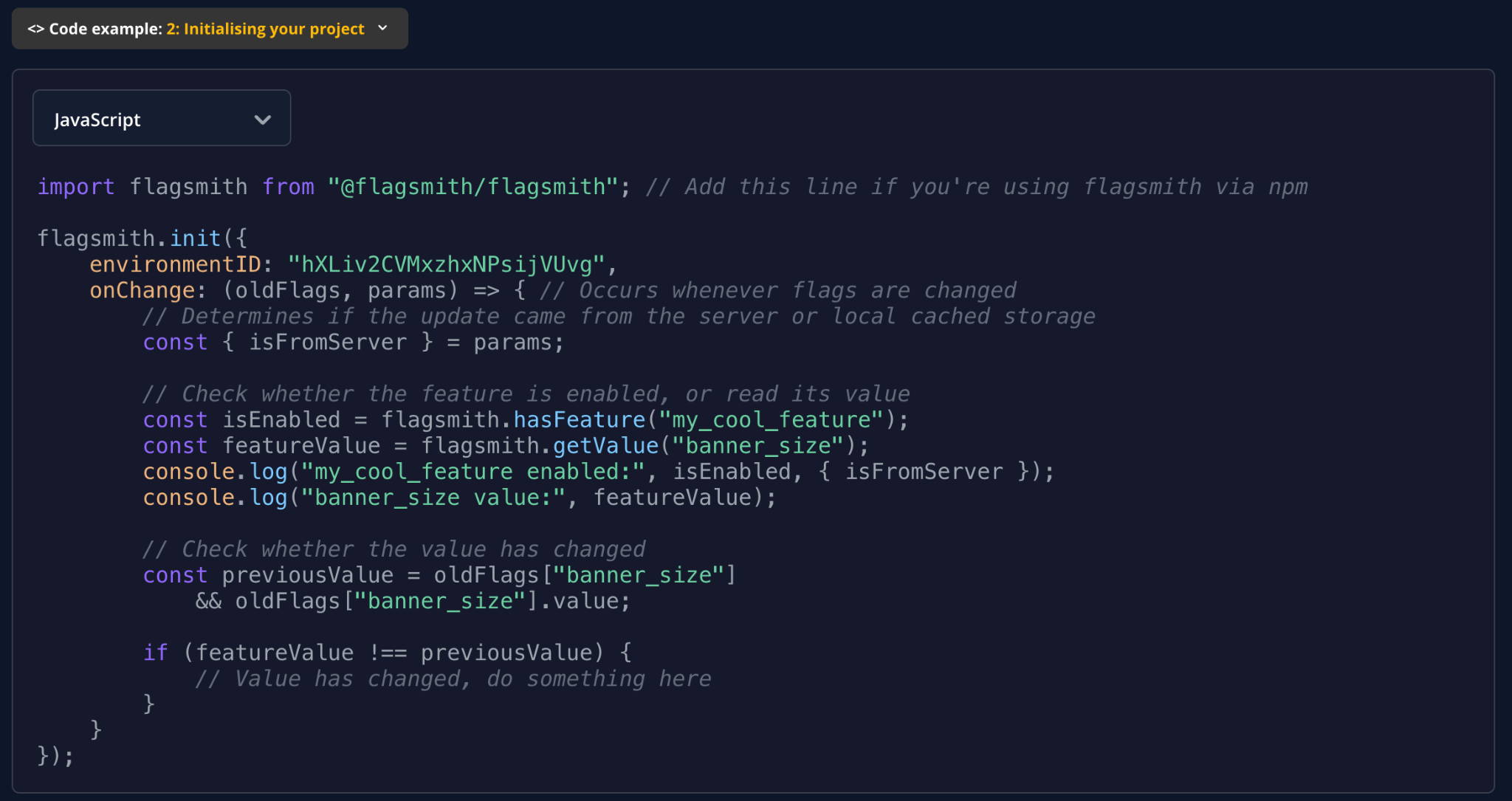
You can get the environment ID by clicking “Code example: 2: Initialising your project” below the Features list. If the code shows a different language, switch the dropdown to JavaScript, and the ID appears in the flagsmith.init() call, as seen below:
Consequently, add the following code where you see the looping through articles towards line 40:
<ul>
          {Array.isArray(articles) && articles.map(
            article => article.url && <li key={article.id}><a href={article.url} target="_blank" rel="noreferrer">{article.title}</a> – by {article.user.name} {showReadingTime ? `(Around ${article.reading_time_minutes} minute${article.reading_time_minutes > 1 ? "s" : ""} read)` : ""}</li>
          )}
</ul>
We have first imported Flagsmith's JavaScript client, then set the showReadingTime on useEffect so that it is only called once on page load. Then, when we render the articles, we check if the reading time should be shown, and then we print the reading time; otherwise, we display an empty string. Next up, we will see the changes in action.
Test JavaScript feature flags
At this point, if we start the app again, it will show something like the below:
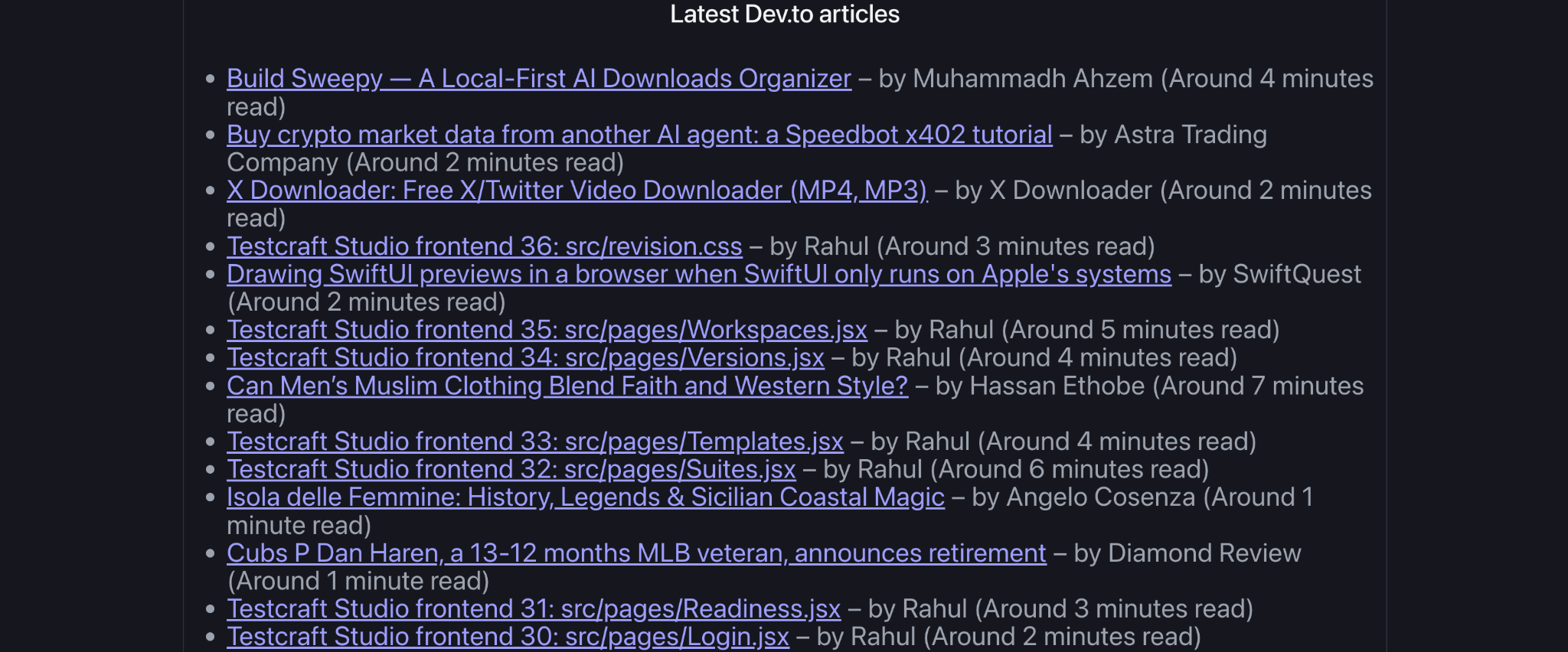
Great! We can see the reading time of the articles. Now, if we would like to turn off showing the reading time, it is very easy. We can just go to the Flagsmith interface, click the flag, and switch “Enabled” off, like below:
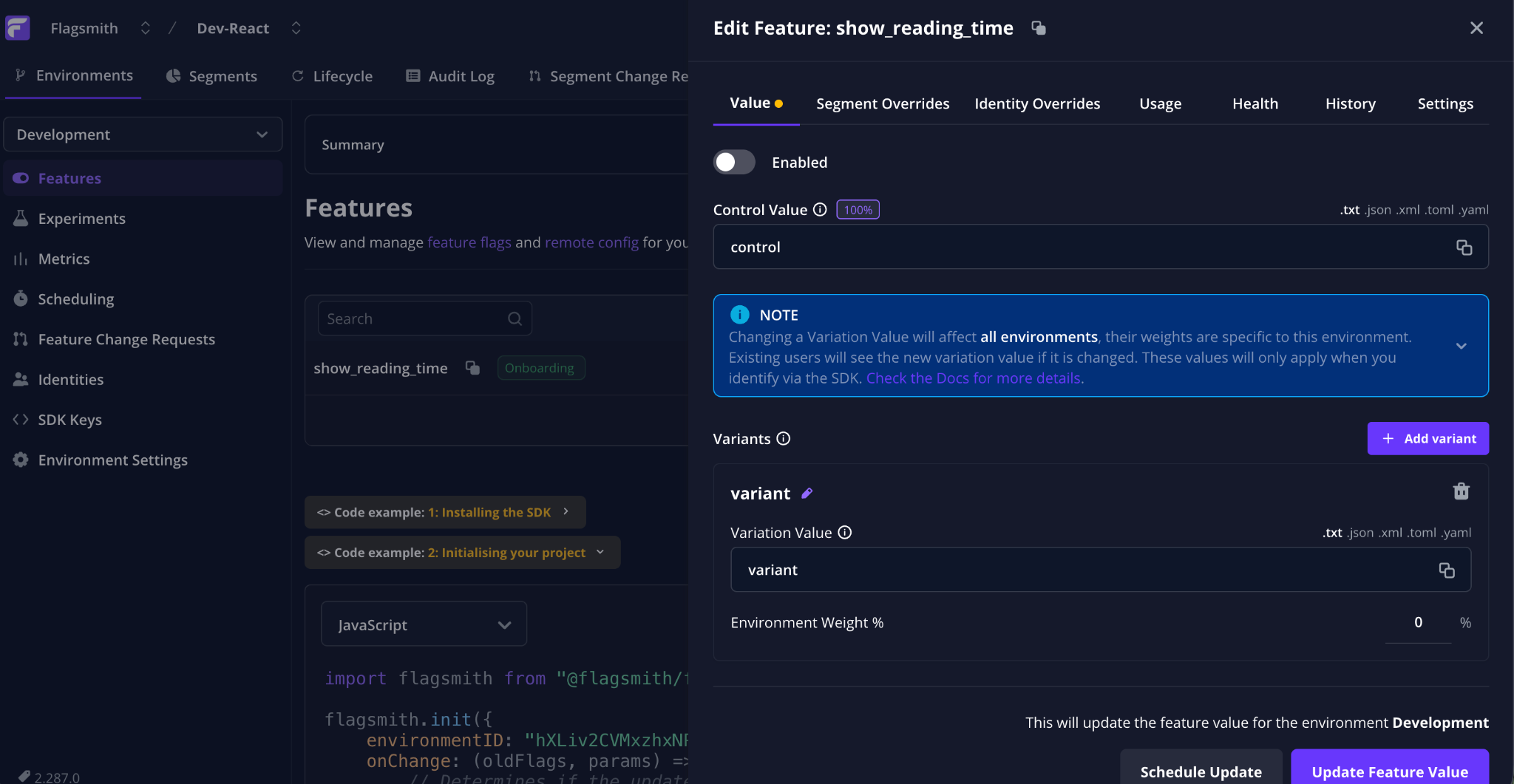
After we click “Update Feature Value” and the flag is off, if we come back and refresh the Dev React app page used for our example, we will not see the reading times anymore, as shown below:

Wasn't that easy? You can deploy the app and change the environment ID to production for your production environment. In the next step, we will deploy the React application to Surge.
Managing JavaScript feature flags without redeploying
This is really the whole point of feature flagging JavaScript apps: once flagsmith.init() has run, onChange fires again every time the flag state updates, whether from a fresh API call or the local cache.
Switch show_reading_time off in the Flagsmith dashboard, click “Update Feature Value”, and the next page refresh picks up the new value. No build step, no deployment pipeline, no waiting on CI—just ship the code once and control what users see from the dashboard.
If you want pages that are already open to update without a refresh, call flagsmith.startListening(60000) after flagsmith.init() to check for changes every 60 seconds.
Deploy React App to Surge.sh (React Feature Flag)
We have run the application locally, so to deploy it to a more production-like environment, we will use Surge.sh. It is a very easy platform to deploy our front-end application.
To deploy our React application to Surge, first we will replace the key from the development to the production one. To do this, we will switch to the “Production” environment using the dropdown in the top left, then click “Code example: 2: Initialising your project” below the Features list, as seen below:
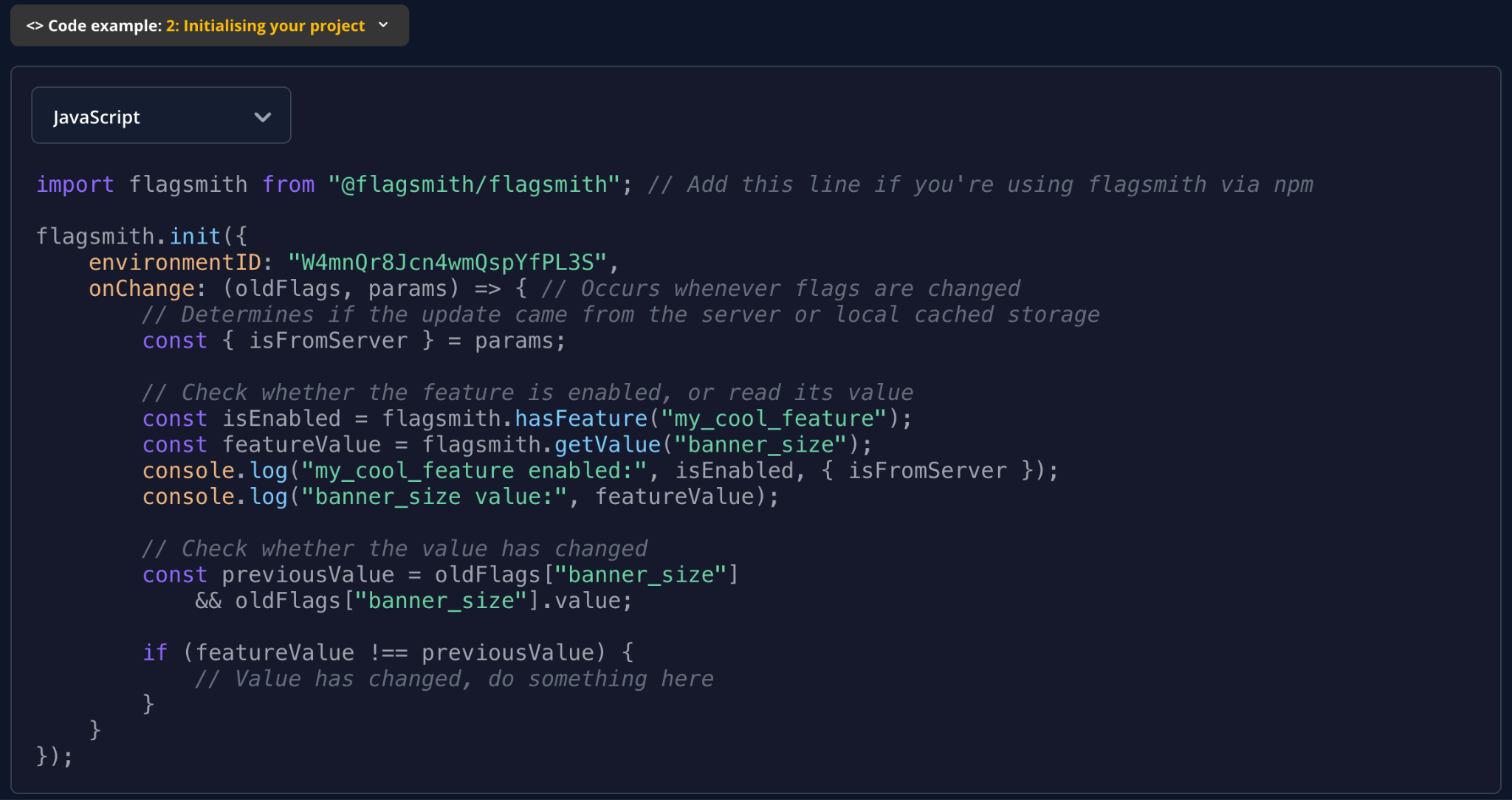
We did a similar thing for the development environment; as we want to deploy to a production-like environment, we are replacing the environment ID with the production one. We will copy the environment ID and replace it on line 24 of src/App.jsx, which will look like this after the change:
flagsmith.init({
    environmentID:"W4mnQr8Jcn4wmQspYfPL3S",
    cacheFlags: true,
    enableAnalytics: true,
    onChange: (oldFlags, params) => {
     setShowReadingTime(flagsmith.hasFeature('show_reading_time'));
    }
  });
Each environment has its own flag settings, so switch show_reading_time on in Production too, the same way you did in Development.
To deploy our Dev.to React app to Surge, we will run the following commands:
yarn buildIt will give the following output:
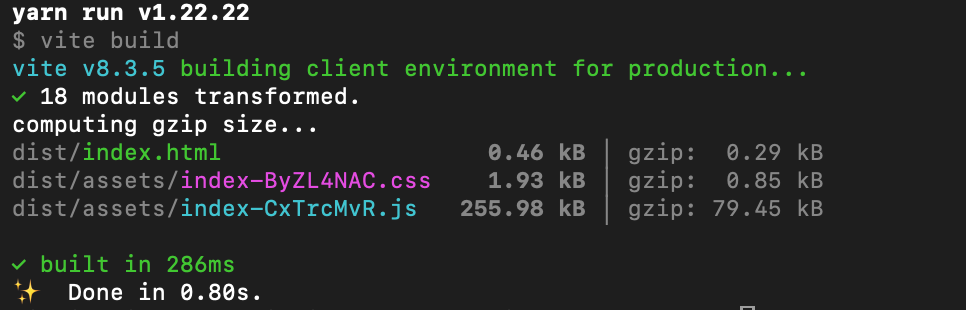
It will also create a dist folder with the output of the build process, which has the index.html file and other static assets.
To install the Surge command line, we will run the following:
npm i -g surgeOn a Mac, this may fail with a permission error. If it does, run sudo npm i -g surge instead and enter your Mac password.
Next, we will go into the dist folder, log in to Surge, and deploy the built app with:
cd dist
surge login
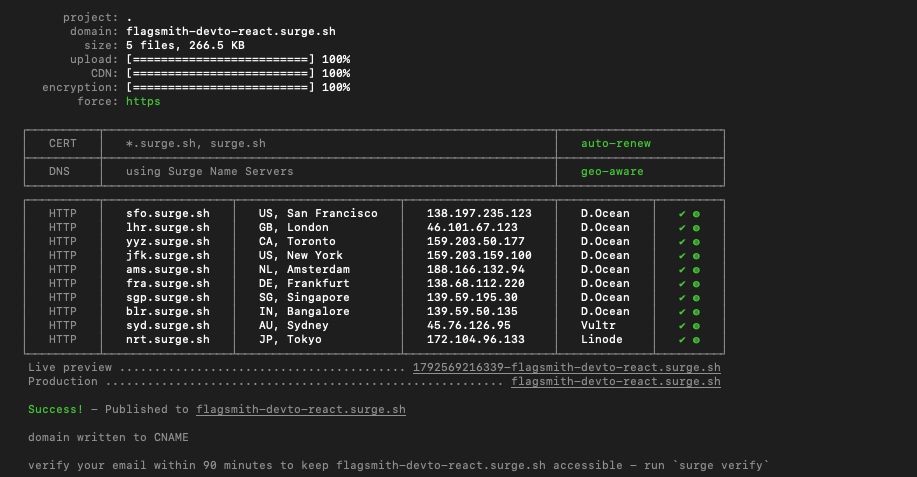
surge . flagsmith-devto-react.surge.sh
The surge login command asks for your email and a password. In the last command, the . tells Surge to publish the current folder, followed by the subdomain to publish it to. I have used flagsmith-devto-react.surge.sh, but you’ll need to choose your own. In a couple of seconds, your app will be deployed to Surge over a CDN as seen below:
Pretty neat! Below is how the app looks on Surge.sh with the toggle for reading time "on" for the JavaScript feature flag, taken from the "production" environment:
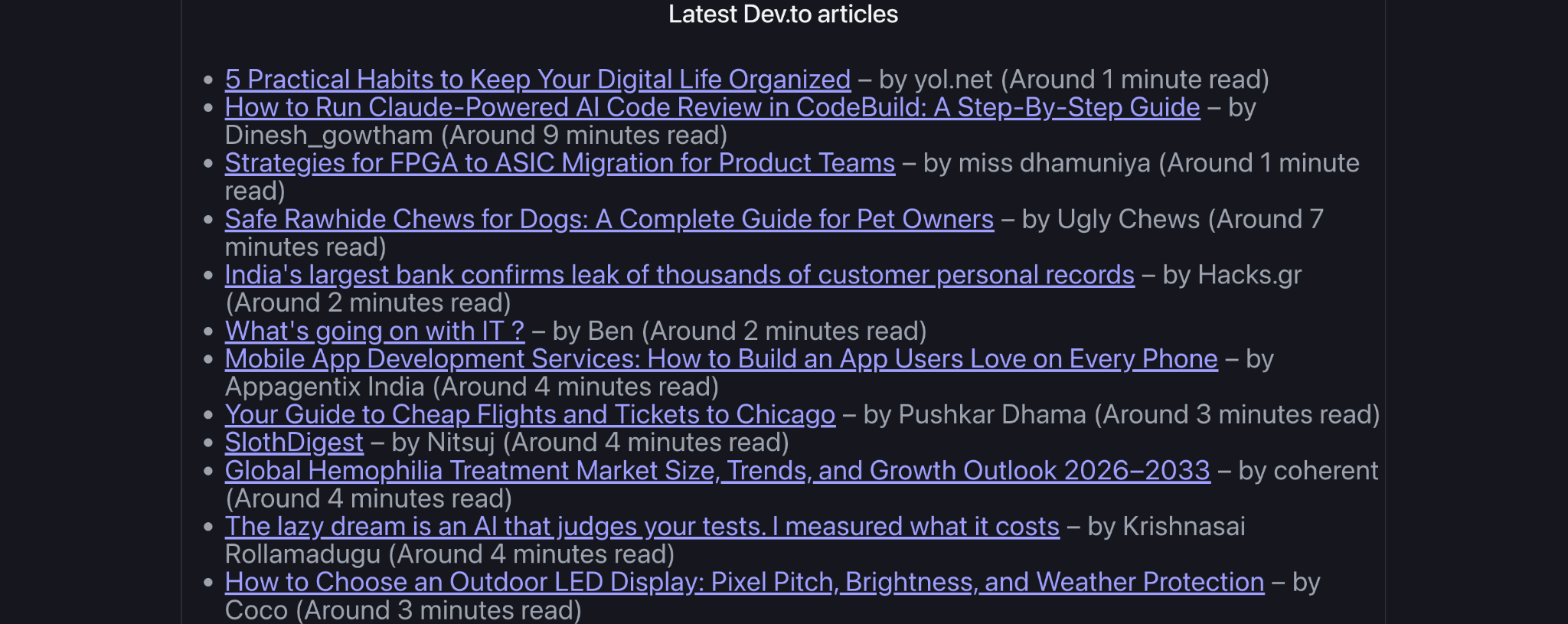
You can try it out too at https://flagsmith-devto-react.surge.sh. Surge will also email you a verification link. Click it within 90 minutes, or your site will be taken offline. Now, let’s see the next steps.
Implementing JavaScript feature flags for production deployments
Notice that the only change between the development and production setup above was the environmentID passed to flagsmith.init(). Flagsmith gives every project separate development and production environments, each with its own key and flag states, so you can test a flag safely before flipping it on in production. For a real app, store the environment ID in an environment variable rather than hardcoding it before you deploy.
Next Steps
Implementing flags in JavaScript is a pretty easy task with amazing benefits. You can use the same Flagsmith JavaScript client in any frontend application ranging from vanilla JavaScript to jQuery, to even Angular or Vue.js applications. It is also possible to use the SDK from a CDN with the following code:
<script src="https://cdn.jsdelivr.net/npm/@flagsmith/flagsmith/index.js"></script>The main concept here is to deploy the feature safely. If there is an issue, we should be able to turn it off in seconds, not minutes or hours, which is very possible with feature flags on an open-source platform like Flagsmith or with the free plan.
With these feature filters, the feature can be turned on and off with a couple of clicks, not with a deployment process, adding unprecedented power and flexibility for software engineering teams. The safety of a feature release is another desirable benefit of the whole process.
By the way, you definitely need to check the feature toggle best practices mentioned earlier. Feature flagging React apps follows the same pattern once you add more flags—a few habits help it scale, covered next.
JavaScript feature flag best practices for engineering teams
A single flag like show_reading_time is simple to reason about. Feature flagging JS codebases with a couple of dozen flags isn't, unless the team builds a few habits into the development process early:
- Name flags for the feature, not the ticket. show_reading_time tells the next developer what it does; a ticket number doesn't.
- Set sensible default values. Pass defaultFlags when you call flagsmith.init() so the app still behaves correctly if the API call fails.
- Don't trust client-side flags for security. A flag hidden in the UI is still visible in your JavaScript bundle. Keep genuinely sensitive conditional features—permission checks or anything commercially sensitive—behind a server-side check too.
- Test both states. Write tests for the flag on and the flag off, not just whichever state is currently live.
- Clean up stale flags. Once a feature has fully rolled out, remove the flag and the old code path, or flag debt builds up fast.
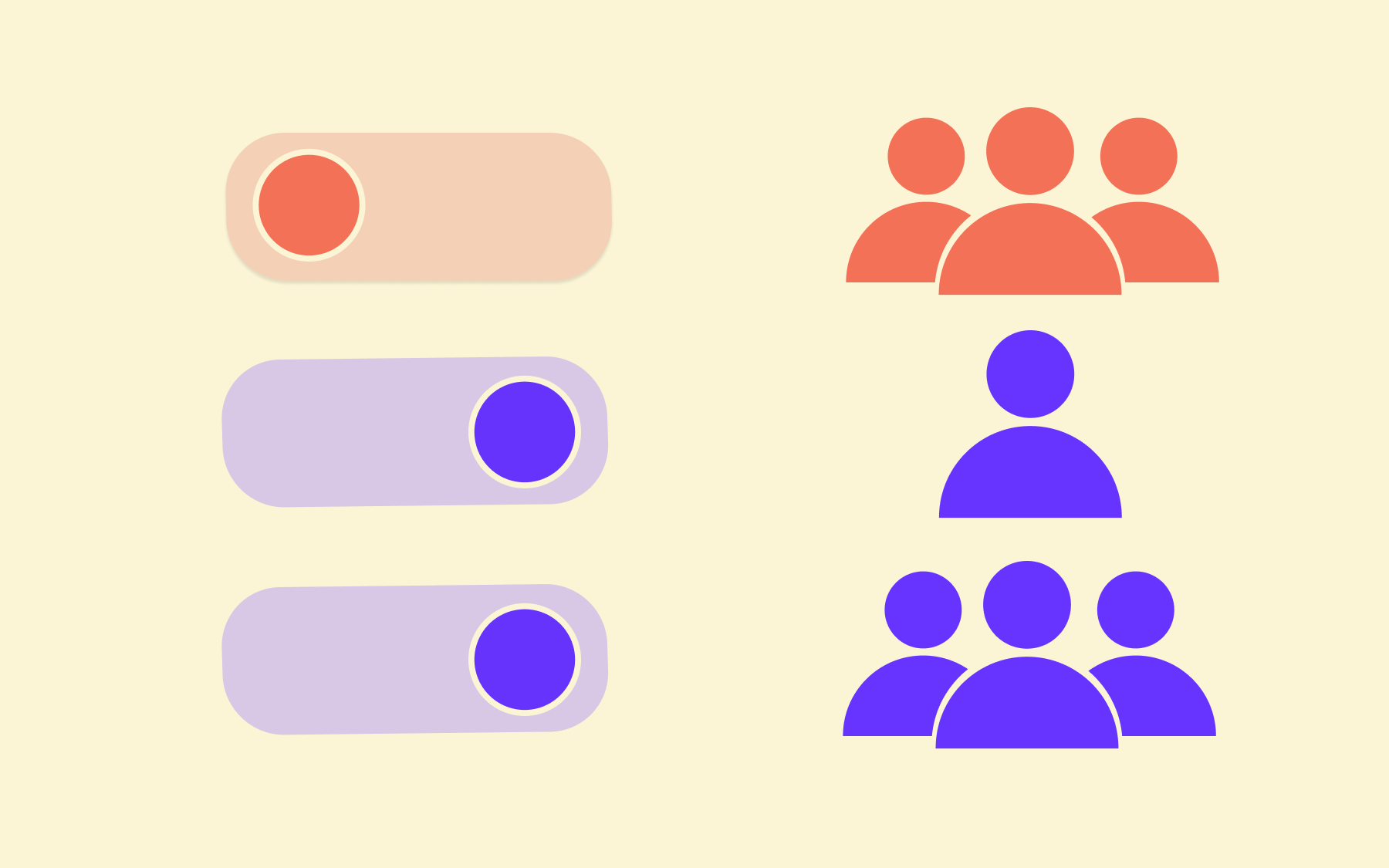
- Roll out to a targeted audience first. Use segments to expose new features to a slice of traffic before a full rollout. Flagsmith also lets you schedule rollouts for a specific date, and supports variant feature flags for more than a simple on/off switch.
These habits apply whether you're using Flagsmith, another feature flagging tool, or a feature flag platform you built in-house.
Conclusion
We just saw how to implement JavaScript feature toggles on a simple React.js app that calls an API to show the latest Dev articles. This idea can be easily implemented in any frontend JavaScript application. Feature releases can be done safely with high confidence and low time to turn the released feature on or off without the need to deploy any new code.
If you haven't already, sign up for Flagsmith and give it a try on your own project.
More Reading
If you enjoyed this guide for feature flags in JS, check out our complete list of feature flag how-to guides, including Flutter, Node, and Python methods:
- Angular feature flags
- Python feature flags
- Java feature flags
- Ruby feature flags
- Flutter feature flags
- NodeJS feature flags
- Spring Boot feature flags
- PHP feature flags
- Golang feature flags
- Kotlin/Android feature flags
- React Native Remote Config
- Swift feature flags
- .Net feature flags
JavaScript feature flags FAQs
What is a flag in JavaScript?
A flag in JavaScript is usually just a boolean variable used to control logic in your code, like the showReadingTime state in this tutorial. A feature flag takes that same idea and moves control outside your code and into a platform like Flagsmith, so you can change it without touching the codebase.
Is Flagsmith free to use for JavaScript feature flags?
Yes. Flagsmith's free plan covers the workflow in this guide as a JavaScript feature management library, with paid plans for teams that need more environments, seats, or enterprise features.
Can I use feature flags JS libraries with frameworks other than React?
Yes. The same @flagsmith/flagsmith client works with vanilla JavaScript, Vue, Angular, and other frontend frameworks—React feature toggles are just one of the most common starting points.
Are feature flags safe to use for security-sensitive features?
Not on their own. A client-side flag is visible in your JavaScript bundle, so pair it with a server-side permission check for anything sensitive, as covered above.


































OpenTelemetry, without the vendor lock-in: Introducing full observability for Open Source and Self-Hosted Flagsmith customers